
Humanoid Poser.
Configure humanoid IK targets for posing and animation setups. An IK-driven Unity Editor extension for creating custom humanoid poses for visualization, reference, and promotional art.
Introduction
Humanoid Poser is an IK-driven Unity Editor extension for generating visual and dynamic humanoid poses of humanoid characters, for visualization, reference, and promotional art creation purposes only.
It allows full-body IK adjustments, per-body-part animation mixing, real-time previewing, and pose saving within the editor, using a simple and visually organized interface.
This tool is not intended for in-game use or animation authoring/export — it's a reference tool for creators, artists, and animators to visualize poses efficiently inside Unity.
Why Humanoid Poser Is Needed
Imagine having a humanoid animation where you need minimal adjustments to get your desired pose — instead of generating another animation or relying on Forward Kinematics (FK), use Humanoid Poser to get the desired result quickly and visually.
Humanoid Poser simplifies the process by:
- Allowing quick IK-based pose adjustments directly in the scene for visualization purposes.
- Providing pose save / save-as / load for reuse across editor sessions.
- Enabling static pose creation that's ready for screenshot capture or promotional use.
Features Supported
Full-Body IK Support
Works with Unity Animation Rigging, RootMotion Final IK, and Animancer to adjust full-body poses.
Body Part Clips
Assign a separate animation clip per body region on a visual, clickable silhouette picker — a Body base clip plus masked overlays for head, hands, legs, and feet.
Accessories
Drag a prop or prefab onto the character (or a specific body part) to attach it. Its position, world scale, and rotation are saved and restored with the pose.
Setup Animation & Poser Tabs
A dedicated "Setup Animation (Optional)" step builds an isolated posing rig without touching your original character; "Poser" holds the live pose-capture controls.
Color-Coded Visual Gizmos
Drag and rotate IK targets directly in the Scene view — hands, feet, hips, spine, and head are each color-coded for quick identification.
Pose Save, Save As & Load
Save poses as HumanoidPoserConfig assets for reuse within the editor; Save As branches off a new file without overwriting the original.
Live IK System Switching
Swap between supported IK solutions without losing your captured pose — the switch preserves it automatically.
Animation Speed & Scrubbing
Slow down or scrub frame-by-frame through a per-character animation to land on exactly the pose you want before capturing it.
Best suited for artists, animators, and technical teams who need a fast, accurate, visual IK-based pose creation system for concept art, promotional materials, and reference visualization inside the Unity Editor.
Feature Availability Comparison
Humanoid Poser integrates with three IK solutions. All three currently support the full feature set below.
| Feature | Animation Rigging | Final IK | Animancer |
|---|---|---|---|
| Hand IK | Supported | Supported | Supported |
| Foot IK | Supported | Supported | Supported |
| Look At IK | Supported | Supported | Supported |
| Body IK (COM Control) | Supported | Supported | Supported |
| Bend Goals | Supported | Supported | Supported |
| IK Weight Control | Supported | Supported | Supported |
| Realtime Editing | Supported | Supported | Supported |
Installation
-
Install the package
Install Humanoid-Poser from the Unity Asset Store. If you're upgrading, remove the older
Humanoid Poserfolder before installing the new version. -
Import an IK solution (optional)
Humanoid Poser works without any IK solution for capturing and editing body poses. An IK solution is only needed for IK-based hand and leg pose editing — import one of the following if you need that:
- Unity Animation Rigging Package (free)
- Final IK (RootMotion) — paid, sold separately on the Unity Asset Store
- Animancer (Kybernetik) — free Lite tier available; Pro sold separately
Importing an IK Solution
1. Unity Animation Rigging (Free)
Install via Window > Package Manager → Unity Registry → search Animation Rigging. Then go to Assets/ThumbSword Studio/Humanoid-Poser/OptionalIK/AnimationRiggingSupport and import AnimationRiggingSupport.unitypackage.
2. Final IK from RootMotion
Available on the Unity Asset Store. After importing it, go to Assets/ThumbSword Studio/Humanoid-Poser/OptionalIK/FinalIKSupport and import FinalIKSupport.unitypackage.
3. Animancer from Kybernetik
Install via the Unity Asset Store or Kybernetik's website (Pro or Lite). Then go to Assets/ThumbSword Studio/Humanoid-Poser/OptionalIK/AnimancerSupport and import AnimancerSupport.unitypackage.
After importing, the corresponding IK system becomes available from the IK System dropdown in the Poser tab. You can also open this same import flow from inside the tool — a warning card appears if IK is set but its package isn't imported yet, with a direct Import button.
How to Use the Tool
-
Open the tool
Menu:
Window > ThumbSword > Humanoid Poser Setup -
Select a character
Click a GameObject with an
Animatorand a humanoidAvatar. The tool auto-validates your selection and shows it in the Selected GameObject card. -
Set up animation (optional)
Under Setup Animation (Optional), choose an Animation Tool (Unity Animator or Animancer) and assign the character's Humanoid Avatar, then click Setup Poser Animation. This builds an isolated, rig-only copy of your character to pose — your original is never modified.
-
Assign Body Part Clips
Drag an AnimationClip onto the Body region of the silhouette picker (required as the base layer), then optionally onto Head, Hands, Legs, or Feet to layer clips per region — e.g. a walk on the Body with a separate wave on the Right Hand. Assigned regions get a pulsing outline. You can also drop a model file (FBX, etc.) directly — if it carries an embedded animation, that clip is used automatically.
-
Add accessories (optional)
Drag a prop prefab onto the Accessories card, or onto a specific body-part region to parent it at that bone. Each accessory's transform is saved and restored together with the pose.
-
Enter Play Mode and find your pose
Use the Animation Speed slider and scrub bar to land on the exact frame you want, then click Capture Pose to make it editable and enter Pose Mode.
-
Configure IK
Pick an IK system from the IK Setup block and apply it. Switching systems later preserves your captured pose. Toggle IK Weight on to blend it in, or off to work purely in FK — it's an on/off switch, not a fine-tuned blend amount.
-
Save your pose
Use Save to overwrite the current Pose Config, Save As to branch off a new one, or Load to bring back a saved pose (including on a different character). Reset Targets to Captured Pose snaps everything back to the original captured frame.
Play Mode controls
- Per-character Animation Speed slider, plus a scrub bar for frame-by-frame positioning.
- Toggle IK weight on or off.
- Toggle the Animation Mode / Pose Mode switch to flip between live animation and your captured, editable pose.
- Save IK target transforms — plus finger poses, attached accessories, and optionally camera framing — into a
HumanoidPoserConfigasset for reuse.
Using IK targets for pose manipulation
To get a clear look at IK target gizmos, disable other gizmos via the Toggle Gizmo button in the Scene view. Each target is color-coded by body region:
Hand and foot targets also have one face colored solid red, matching Head — that's the sole of the foot / palm side of the hand, so you can tell which way the target is oriented at a glance.
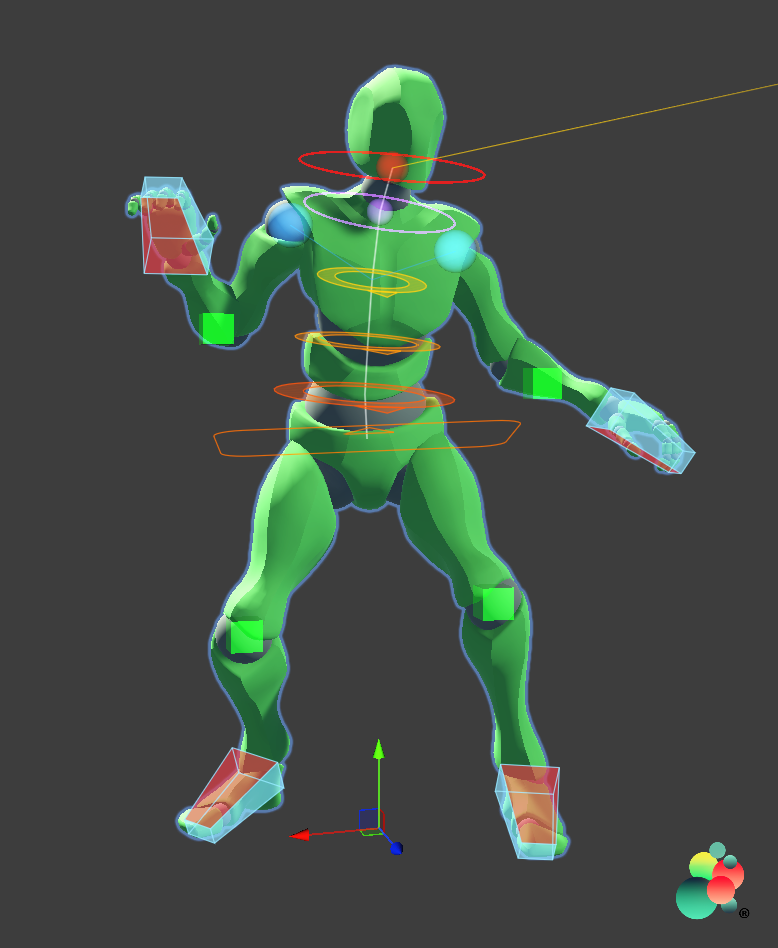
- Drag to move — click and drag a gizmo to translate it, relative to the camera view (rotate the camera for a better angle).
E+ mouse drag to rotate — shows a rotation gizmo on the IK target.
Every gizmo above dims and stops responding to drags while IK Weight is off and an IK system is assigned — those targets can't affect the pose until IK is switched back on, so editing them is disabled rather than silently doing nothing. Hips is the one exception: it's driven directly and stays active regardless of IK Weight.
Limitations
- Humanoid Poser is a pose-tweaking tool built primarily for cinematic usage and static pose capture — not for runtime or in-game pose manipulation.
- It works best for non-moving or low-motion animations (e.g. standing, anticipation), where bone adjustments enhance a pose without authoring a new animation. For fast-moving animations, slow down or scrub to the desired starting frame before capturing.
- Final pose accuracy depends on the IK solution used; minor variations may occur across different IK systems.
- Saving a pose does produce a paired animation clip alongside its Pose Config, but Humanoid Poser is not a general animation-authoring pipeline — poses are meant as single-frame references for visualization and promotional capture, not full authored animations.
Known Issues
We're actively working through these, highest priority first. If you hit one of them — or something not listed here — please let us know.
-
#1
High Priority
Sharing one Pose Config across characters
Runtime pose state isn't fully isolated per character yet. If two characters point at the same Pose Config asset, capturing or saving on one can affect the other. The tool also doesn't yet warn you before you overwrite a config or clip that's shared elsewhere — check what's assigned before saving.
-
#2
Medium Priority
LookAt target on Capture Pose
The LookAt IK target doesn't always update to match the direction the source animation was actually looking when you click Capture Pose — it can retain its previous position instead. Reposition it manually if needed.
-
#3
Medium Priority
Animancer edge cases
Capture Pose, Load Pose, scrubbing, and exiting Pose Mode are still being validated against every Animancer setup, particularly Animancer Lite. If a character seems stuck on a previous pose after these actions, exiting and re-entering Pose Mode is a reasonable workaround while we track this down.
-
#4
Low Priority
Character selection
Selecting a child of your character (rather than its root) doesn't always resolve to the right humanoid root, and the selected character isn't always preserved across entering/exiting Play Mode.
-
#5
Low Priority
Finger and toe poses not baked into the exported clip
Finger and toe poses save to the Pose Config correctly and reload exactly as posed. They're just not yet written into the paired
.animclip — only the body's IK/FK pose is baked into that file. We're looking at including finger and toe curves in the export.
Removing Humanoid Poser
Full removal from a character: click Cleanup in the Setup Animation tab to remove the poser rig, IK setup, and gizmo visualiser in one step.
IK only: use Clear IK in the Poser tab's IK Setup block to remove just the IK integration, leaving your body posing, clips, and accessories intact.
If components aren't removed correctly:
- Remove the Humanoid Poser components from the affected GameObjects manually.
- Remove the Humanoid Poser folder from your Assets folder.
Contact Us
We hope this tool is useful to you. If you run into any issues or have feedback, we'd love to hear from you — including what features you'd like to see next.
Discord
Asset Store
Final IK, RootMotion, Animancer, Kybernetik, Animation Rigging, and Unity are trademarks of their respective owners, used here solely for identification. This product is not affiliated with, endorsed by, or sponsored by these companies.